

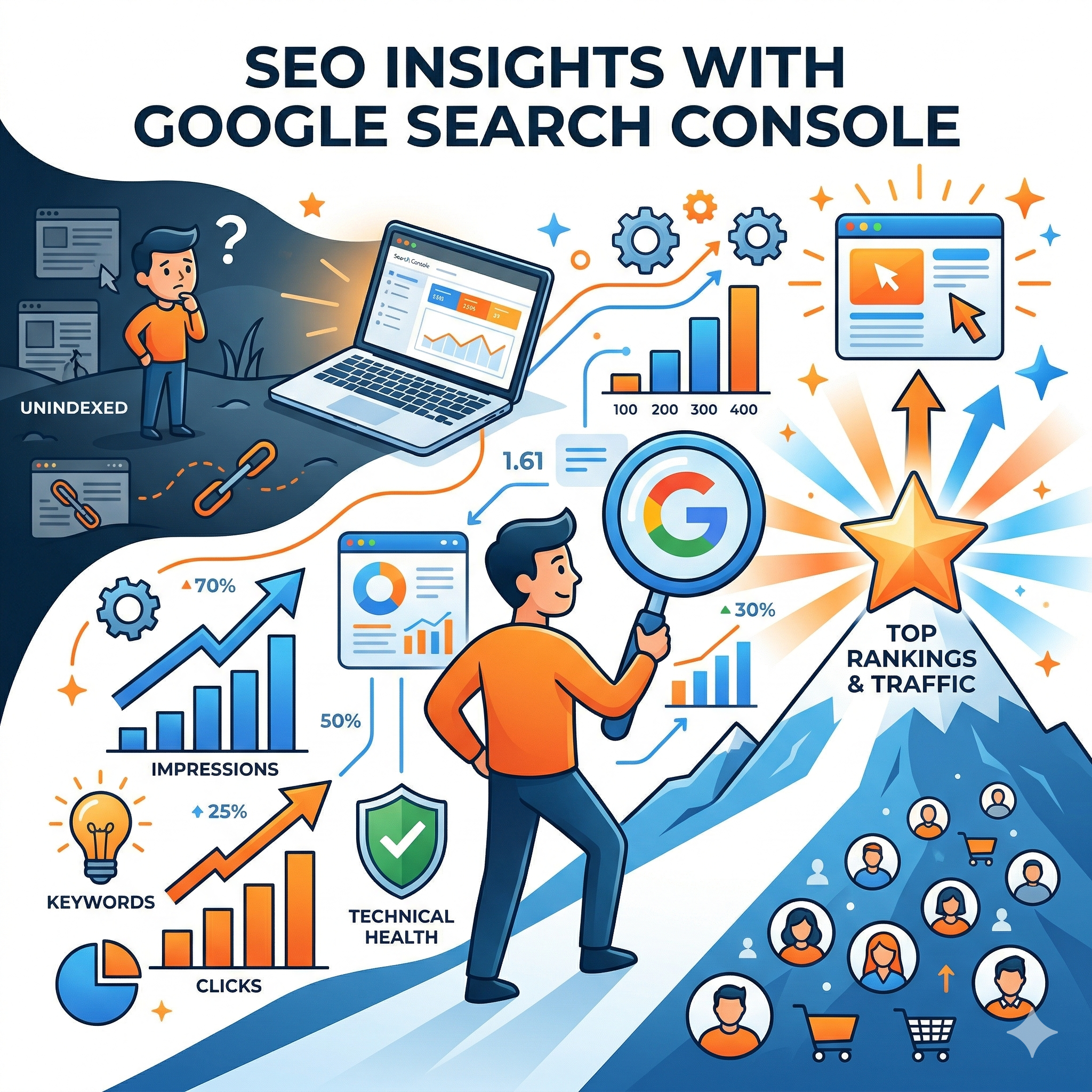
Google Search Console (GSC) is one of the most powerful and completely free tools available to website owners, SEO professionals, content creators, and digital marketers. Provided directly by Google, it delivers first-party data straight from Google’s own index about how the search engine crawls, indexes, and ranks your website in Google Search results. Unlike third-party SEO tools that rely on estimates and sampling, GSC shows you actual impressions, clicks, click-through rates (CTR), average positions, and critical technical health signals.
In 2026, with the rapid growth of AI-powered search features such as AI Overviews, generative experiences, and enhanced Discover integration, Google Search Console has become even more essential. It now provides visibility data across traditional organic results, AI-generated summaries, video search, image search, News, and more. Whether you run a small personal blog, an e-commerce store, a news website, or a large enterprise site, mastering Google Search Console will help you diagnose problems, discover opportunities, optimize content, improve user experience, and drive more qualified organic traffic.
This extremely detailed guide covers everything from initial setup to advanced usage strategies. You will learn every major report in depth, understand the metrics clearly, follow step-by-step instructions, see real-world examples, and receive actionable SEO tips tailored for 2026.
What Is Google Search Console and Why Does It Matter for SEO?
Google Search Console is Google’s official web service that helps you monitor, maintain, and troubleshoot your site’s presence in Google Search. It answers key questions such as:
- Which search queries are driving impressions and clicks to your website?
- Are your pages being crawled and indexed correctly?
- How does Google (and real users) experience your site’s loading speed, interactivity, and visual stability?
- What technical or structured data issues are preventing your pages from appearing in rich results?
- How are other websites linking to you, and where can you improve internal linking?
Key benefits of using Google Search Console include:
- Direct, accurate data from Google with no sampling
- Early detection of crawl errors, indexing problems, mobile usability issues, security threats, and manual actions
- Detailed performance tracking with up to 16 months of historical data
- Clear optimization opportunities such as high-impression pages with low CTR or underperforming long-tail keywords
- Insights into visibility in AI Overviews and other emerging search formats
- Completely free and always updated by Google
In today’s search landscape, where user experience signals (Core Web Vitals and Page Experience) and helpful content matter more than ever, Google Search Console serves as your primary command center for aligning your website with Google’s ranking priorities.
Setting Up Google Search Console: Step-by-Step Instructions
To begin using Google Search Console, you only need a Google account. Follow these steps carefully:
- Go to the official Google Search Console homepage and sign in with your Google account.
- Add a new property:
- Choose Domain property (recommended for most users). Enter your root domain (for example: example.com). This automatically covers all subdomains, www and non-www versions, and both http and https protocols.
- Alternatively, choose URL prefix property if you want to monitor only a specific section of your site (for example: https://blog.example.com/).
- Verify ownership of the property. For Domain properties, add a DNS TXT record at your domain registrar. For URL prefix properties, you can use methods such as HTML meta tag, Google Analytics 4, Google Tag Manager, or uploading an HTML verification file.
- Once verified, add any additional properties you need to manage. You can easily switch between properties from the dropdown menu.
- Manage users and permissions. Go to Settings > Users and permissions. Add team members with appropriate roles: Owner (full access), Full user, or Restricted user (view-only). Always keep a record of who has access.
- Link your Google Analytics 4 (GA4) property in the Settings section. This connection provides deeper combined insights between search performance and on-site user behavior.
- Submit your XML sitemap. Go to Indexing > Sitemaps, enter your sitemap URL (usually https://example.com/sitemap.xml), and click Submit. This helps Google discover and crawl your pages more efficiently.
Pro tip: Consider verifying both Domain and URL prefix properties if you need maximum flexibility. Enable email notifications in Settings for important issues such as manual actions or security problems.
Data may take several hours or even a few days to start appearing after verification, especially for new or low-traffic sites. In the meantime, use the URL Inspection tool to submit your most important pages for crawling.
Navigating the Google Search Console Dashboard
After signing in, you land on the Overview page. This dashboard gives you a quick snapshot of your site’s health across several areas:
- Performance summary (clicks, impressions, top queries and pages)
- Indexing status (how many pages are indexed versus not indexed)
- Experience metrics (Core Web Vitals for mobile and desktop)
- Enhancements (structured data and rich results status)
- Security and manual actions
The left sidebar organizes all reports into clear categories:
- Performance
- Indexing
- Experience
- Enhancements
- Security & Manual Actions
- Legacy tools and reports
- Settings
In 2026, the interface includes improved filtering options, custom chart annotations, better weekly and monthly views, and AI-assisted report suggestions.
Performance Reports: The Core of SEO Insights
The Performance section is where most SEO professionals spend the majority of their time. It contains several important sub-reports.
1. Search Results (Main Performance Report)
This is the primary report showing how your site performs in traditional Google Search.
Key metrics (available for up to 16 months of data):
- Clicks: Total number of times users clicked through to your site from search results
- Impressions: Total number of times your pages appeared in search results (even if not clicked)
- CTR (Click-Through Rate): Clicks divided by Impressions (expressed as a percentage). This measures how attractive your titles and meta descriptions are.
- Average Position: The average ranking position of your pages for the displayed queries (lower number is better)
You can filter and segment the data by:
- Queries (search terms)
- Pages
- Countries
- Devices (Desktop, Mobile, Tablet)
- Search Appearance types
- Date ranges with easy period comparison
- Branded versus non-branded queries
- AI Overview visibility (newer filters)
How to use this report effectively:
- Compare performance over the last 3–6 months or year-over-year
- Identify pages with high impressions but low CTR (below 2–3 percent) and optimize their titles and snippets
- Find pages ranking on page 2 or lower that could be improved with better content, internal linking, or external signals
- Spot rising long-tail queries for new content opportunities
- Export the data to Google Sheets or Looker Studio for deeper analysis
In 2026, you can add custom annotations directly on charts (for example: “Site redesign launched” or “New content campaign started”) to provide context for performance changes.
2. Discover Performance
This report shows how your content performs in Google’s Discover feed on mobile devices. It uses the same metrics as the main Search Results report and is especially valuable for content publishers and blogs.
3. Other Performance Reports
Additional reports cover Google News, Video search, and Image search performance where applicable.
Actionable strategies from Performance data:
- Optimize titles and meta descriptions for pages with high impressions but low CTR
- Use top-performing queries to build content clusters or create supporting pages
- Plan seasonal content based on recurring query trends
- Refresh or expand underperforming content that shows declining clicks
Indexing Reports: Make Sure Google Can See and Rank Your Pages
The Indexing section reveals exactly how Google is processing your website.
Page Indexing Report
This report shows the status of all URLs Google has discovered:
- Indexed pages (both submitted and not submitted in sitemaps)
- Not indexed pages with specific reasons (Crawled – currently not indexed, Discovered – currently not indexed, Blocked by robots.txt, Noindex tag, Duplicate pages, etc.)
Clicking on any “Not indexed” category shows example URLs so you can diagnose and fix the root causes quickly. For large sites, pay special attention to pages marked “Crawled – currently not indexed” as Google may be deprioritizing low-value or thin content.
Sitemaps Report
Here you can submit, monitor, and check for errors in your XML sitemaps. Keep your sitemaps clean, ensure important pages are included, and update lastmod dates accurately.
URL Inspection Tool
This is one of the most powerful individual page diagnostic tools in Google Search Console. Simply enter any URL from your site to see:
- Current indexing status
- Last crawl date
- Canonical URL information
- Mobile usability status
- Page Experience signals
- Structured data and rich results eligibility
You can also “Test Live URL” to check the current version of the page and “Request Indexing” for high-priority updates (use this quota carefully).
Best practice: After making significant content updates or technical fixes, inspect the page and request indexing for important URLs.
Experience Reports: Focus on User-Centric SEO
Google increasingly rewards websites that deliver excellent real-user experiences.
Core Web Vitals Report
This report uses real-world data from Chrome users to measure:
- LCP (Largest Contentful Paint) – loading performance (good if under 2.5 seconds)
- INP (Interaction to Next Paint) – interactivity and responsiveness (good if under 200 ms)
- CLS (Cumulative Layout Shift) – visual stability (good if under 0.1)
Pages are grouped by device (Mobile/Desktop) and status: Good, Needs Improvement, or Poor.
Fixing poor Core Web Vitals involves optimizing images, improving server response times, reducing JavaScript execution, and preventing unexpected layout shifts.
Mobile Usability Report
Identifies common mobile problems such as text too small to read, clickable elements too close together, or missing viewport configuration. Fixing these issues improves both user experience and mobile rankings.
Page Experience Report
Combines Core Web Vitals with HTTPS security, safe browsing status, and absence of intrusive interstitials.
Strategy: Aim for “Good” status on as many URLs as possible, especially on mobile. Regularly audit and optimize these metrics as they directly influence rankings.
Enhancements and Structured Data Reports
These reports help you qualify for rich results (featured snippets, carousels, knowledge panels, etc.):
- Rich Results Report (errors and eligibility for FAQ, HowTo, Product, Recipe, Job Posting, etc.)
- Breadcrumbs, Sitelinks Searchbox, and other specific enhancements
Implementing correct JSON-LD structured data can significantly increase CTR by making your listings more visually appealing in search results.
Links Report
The Links report shows:
- Top external sites linking to you
- Pages on your site with the most backlinks
- Internal linking statistics
Use this data to identify linking opportunities, strengthen internal site architecture, and spot any potentially problematic external links.
Security & Manual Actions
Monitor this section for:
- Security issues (malware, phishing, hacked content)
- Manual actions (penalties for spam or policy violations)
Address any issues immediately and submit a reconsideration request once fixed.
Advanced Strategies for Using Google Search Console in 2026
- Keyword & Content Strategy
- Export query data and group similar terms into topic clusters
- Target high-impression, low-CTR pages for snippet optimization
- Identify content gaps using rising queries with zero or low clicks
- Technical SEO Maintenance Routine
- Weekly checks: Indexing status and Core Web Vitals
- Monthly deep dives: Performance trends and URL Inspection for priority pages
- Quarterly full audits: Combine GSC data with site crawls
- E-commerce Optimization
- Monitor product page indexing and rich results for prices and reviews
- Track seasonal query performance for promotions
- Site Migration Monitoring
- Use date comparisons before and after migrations to catch indexing or traffic drops quickly
- Integration with Other Tools
- Combine GSC with Google Analytics 4 for conversion insights
- Export data to Looker Studio for custom dashboards
- Use alongside other SEO platforms for backlink and keyword depth
- AI Search Optimization
- Watch new filters for performance in AI Overviews
- Focus on creating high-quality, experience-rich content that demonstrates E-E-A-T (Experience, Expertise, Authoritativeness, Trustworthiness)
Common Mistakes to Avoid
- Ignoring “Not indexed” reasons and letting crawl budget go to waste
- Over-relying on Average Position (it is a weighted metric and can be misleading)
- Requesting indexing too often on low-priority pages
- Failing to use date range comparisons properly
- Not documenting major site changes with annotations
Best Practices and Ongoing Maintenance
- Check Google Search Console at least once a week
- Enable critical email alerts
- Use custom annotations to record site changes
- Keep sitemaps updated and clean
- Train your team on the most important reports
- For large websites, use heavy filtering or segmented properties
Stay informed by following Google’s official Search Central updates, as new features and filters are added regularly.
Conclusion: Turning Google Search Console Data into Real SEO Growth
Google Search Console is far more than a monitoring tool. It is a strategic weapon for data-driven SEO in 2026 and beyond. By consistently analyzing the Performance reports for opportunities, fixing Indexing and Experience issues proactively, leveraging Enhancements for better visibility, and using the URL Inspection tool for precise diagnostics, you can steadily improve your organic search presence.
Start today: Verify your site if you haven’t already, explore the Performance report for the past 28 days, fix any obvious indexing errors, and optimize at least one low-CTR page. These small, consistent actions compound into higher rankings, better user engagement, and sustainable traffic growth.
SEO success is iterative. Google Search Console gives you the direct signals from Google — your job is to turn those insights into better content, stronger technical foundations, and superior user experiences.
Master Google Search Console, and you put your website in direct conversation with Google. Use it wisely and watch your organic results improve over time.
This guide provides a comprehensive foundation, but the SEO landscape continues to evolve. Revisit your reports regularly, experiment with different filters and date ranges, and adapt your strategies based on the unique data from your own website.
Happy optimizing!

Author